

This article provides guidance on how to create a new API Access key. Please note that API Access keys can only be generated by a Super Admin user and require explicit approval from the Root user.
🔒 Policy Note: To maintain top-tier institutional security, creating or modifying a whitelisted address group follows a dual-authorization workflow. A new setup requires an initial configuration submission by an authorized administrator followed by mandatory final approval from the enterprise's Root user.
Role | Access |
|---|---|
Root Admin | ✅ View & Approve changes |
Super Admin (all) | ✅ View, Add & Edit (Root approval required) |
User (all) | ❌ No access |
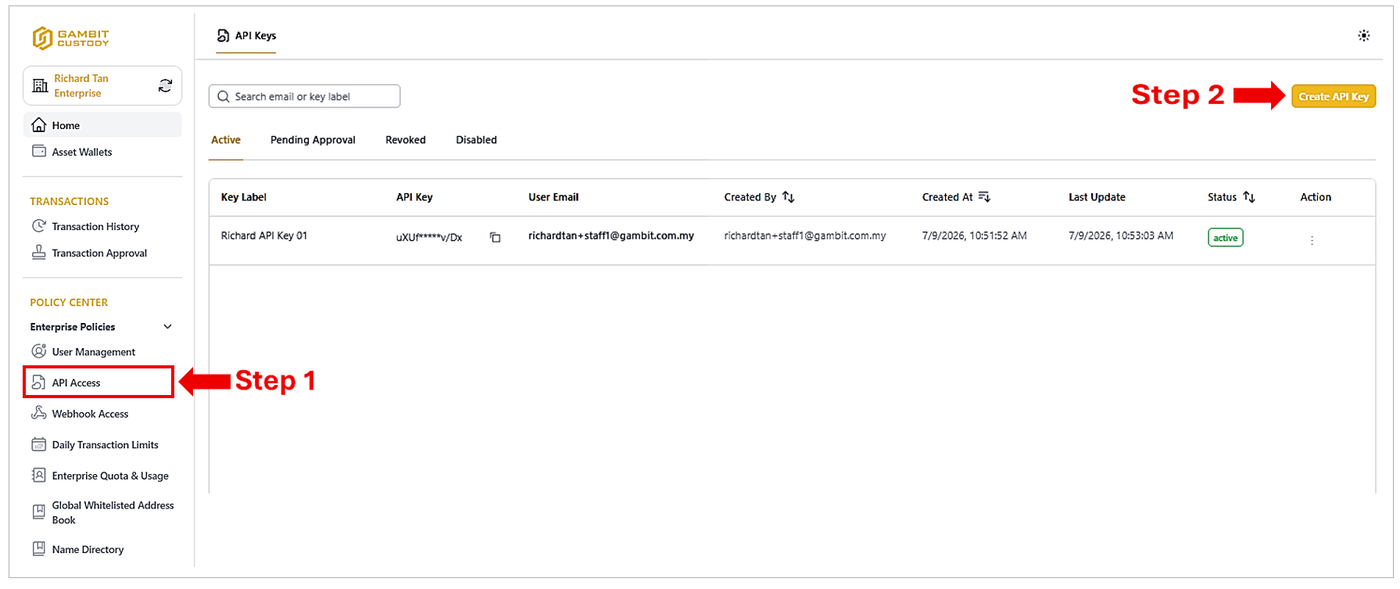
Step 1: Navigate to the API Access Module
Locate the Policy Center section in the left sidebar menu.
Under Enterprise Policies, click on API Access.
Click the Create API Key button located in the top-right corner of the interface.
Step 2: Configure the API Key Details
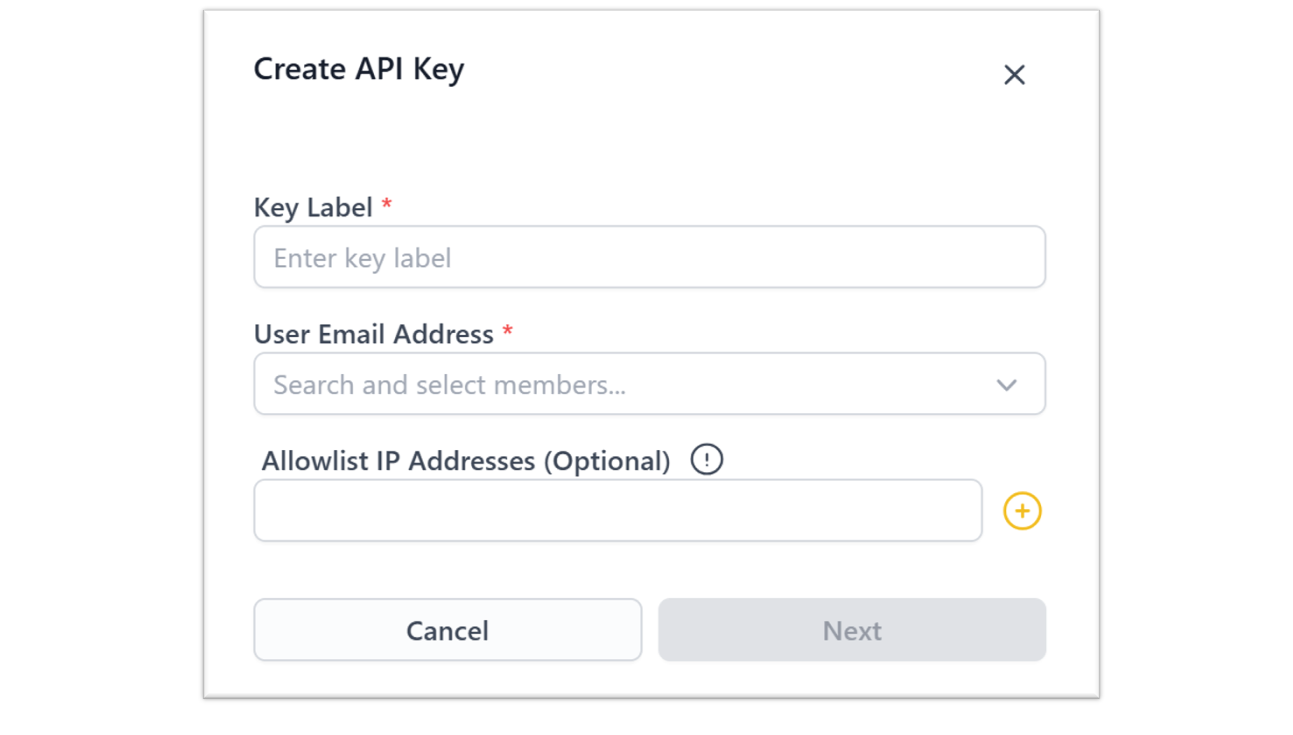
A configuration modal will appear. Provide the following required information:
Key Label: Enter a descriptive, unique label for the API key based on its intended purpose or the specific system/integration it will serve.
User Email Address: Select the designated user member who will be assigned to this API key from the dropdown menu.
Allowlist IP Addresses (Optional): Define specific IP addresses permitted to use this key for enhanced operational security.
Step 3: Awaiting Multi-Factor Authentication & Submission
Upon successful multi-factor authentication (MFA) verification by the creator, the newly generated key request will be submitted and will appear under the Pending Approval tab.
💡 Note: The creator can revoke the pending request at any time before final approval by clicking the action button (three vertical dots) on the far right and selecting Cancel Request.

Step 4: Review and Approval by the Root User
Before an API Key can become functional, it must be approved by the designated Root user.
The Root user must log in to their respective account.
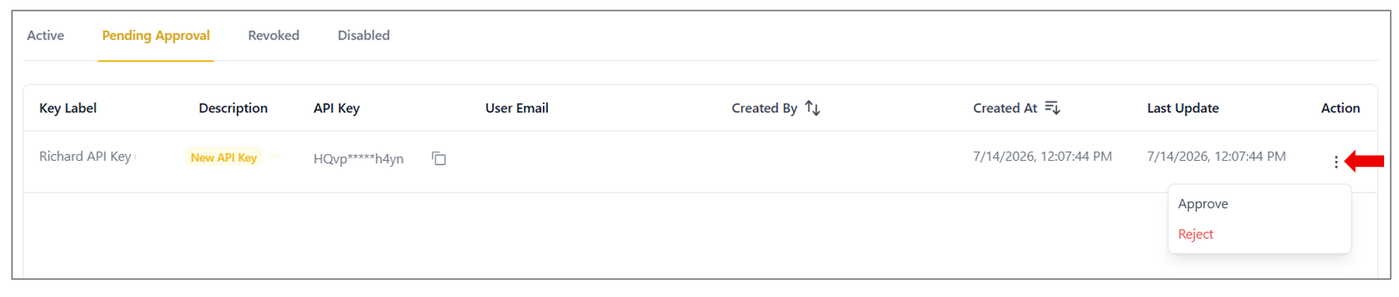
Navigate to the API Access ledger and open the Pending Approval tab.
Click the action button on the far right of the relevant request and select Approve (or Reject if the request is unauthorized).
Step 5: Key Activation
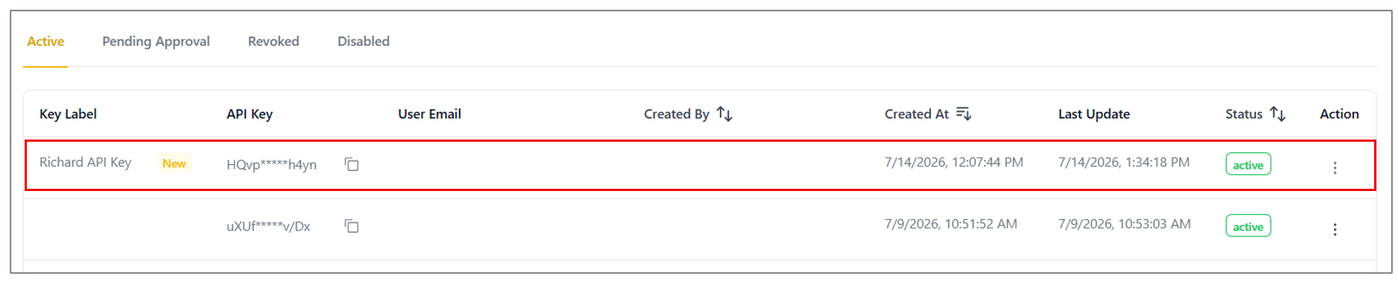
Following the Root user's approval and secondary multi-factor authentication verification, the new key status will update to active. It will now appear within the Active tab ledger and is fully operational for the assigned user.
🔒 Policy Note: To ensure enterprise-grade security, new API Key Creation follows a dual-authorization workflow. It requires an initial submission by an authorized administrator followed by a mandatory final approval from the enterprise’s Root user.