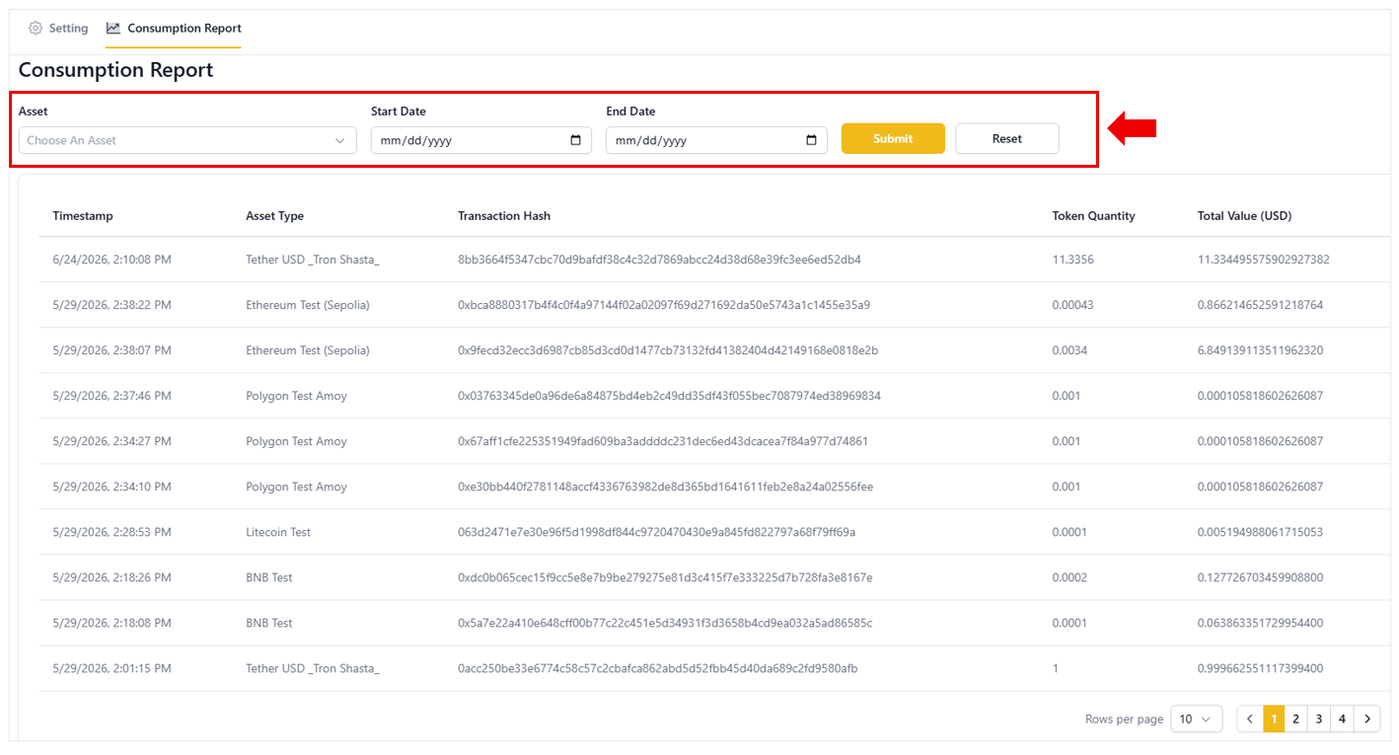

The Digital Assets Custody (DAC) portal features a dedicated dashboard within the Daily Transaction Limits module, allowing Enterprise users to review their overall transactional activity at a glance. This dashboard enables users to quickly track their historical transaction history and calculate real-time consumption rates. This article provides a detailed explanation of the Consumption Report interface and its data filtering features.
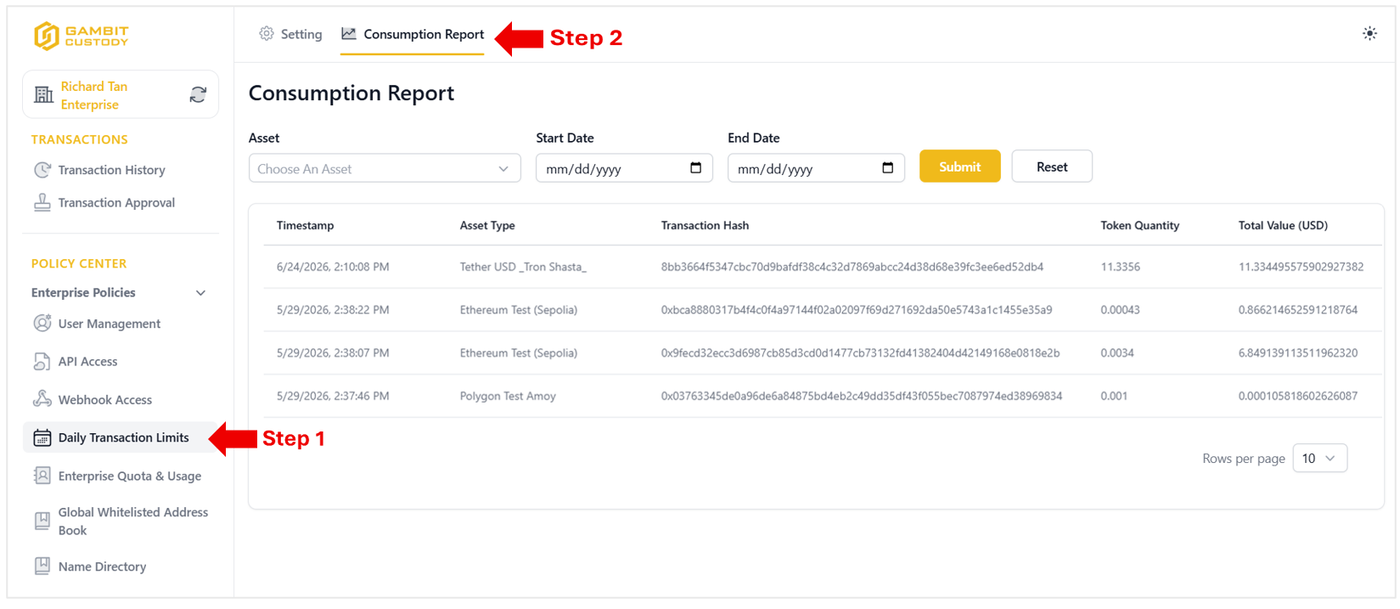
Step 1: Access the Consumption Report Dashboard
Locate the Policy Center section in the left sidebar menu.
Under the Enterprise Policies dropdown, select Daily Transaction Limits.
In the main configuration panel, click the Consumption Report tab located next to the Setting tab.
💡 Note: By default, this tab automatically populates the ledger view with a comprehensive history of all transactions completed by the enterprise.
Step 2: Utilize the Ledger Filters
To drill down into specific transactional data and navigate the ledger efficiently, users can utilize the filtering toolbar located directly above the data table:
Asset Dropdown: Select a specific digital asset type from the menu to narrow the ledger view down to a single cryptocurrency.
Timeline Parameters: Utilize the Start Date and End Date calendar pickers to isolate transactions within a precise timeframe.
Execute Search: Click the yellow Submit button to apply your filter criteria, or click Reset to clear the parameters and return to the default comprehensive view.