

This article provides a step-by-step guide on how to safely disable or revoke an active API Key that is no longer required. Disabling a key will temporarily deactivate its operational status, whereas revoking a key will permanently deactivate the API Key.
🔒 Policy Note: To ensure enterprise-grade security, both deactivation and revocation follow a dual-authorization workflow. The process requires an initial submission by an authorized administrator followed by mandatory final approval from the enterprise's Root user.
Role | Access |
|---|---|
Root Admin | ✅ View & Approve changes |
Super Admin (all) | ✅ View & Initiate changes request (Root approval required) |
User (all) | ❌ No access |
Step 1: Submit the Deactivation Request
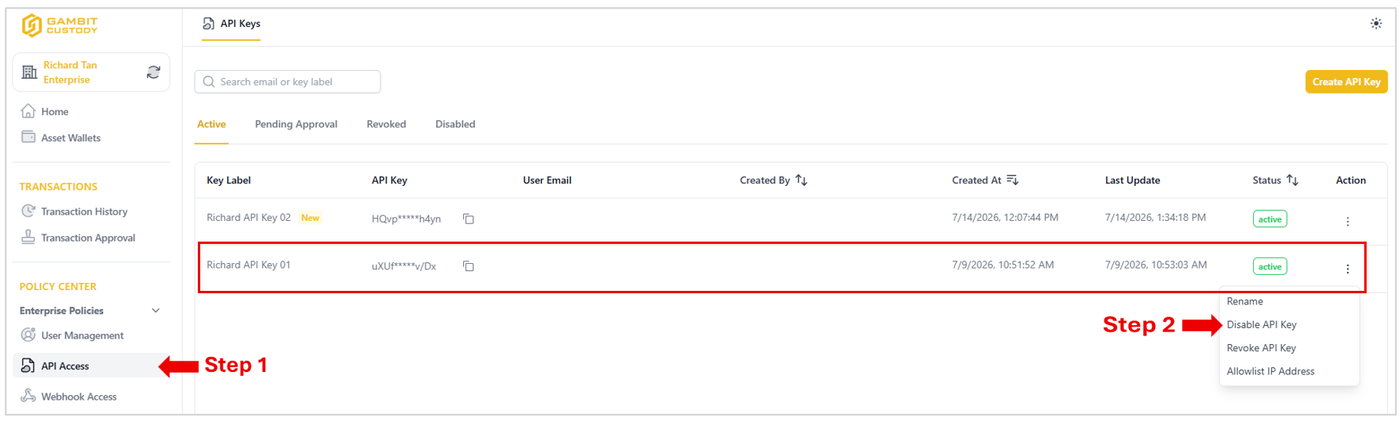
Locate the target API Key you wish to manage within the API Keys ledger.
Click the action button (three vertical dots) on the far right of the row and select either Disable API Key or Revoke API Key from the dropdown menu depending on your objective.
When the Multi-Factor Authentication (MFA) prompt appears, complete the verification process to submit the request.
Step 2: Review and Approval by the Root User
Before the deactivation or revocation request takes effect, it must be officially authorized by the designated Root user.
The Root user must log in to their respective account.
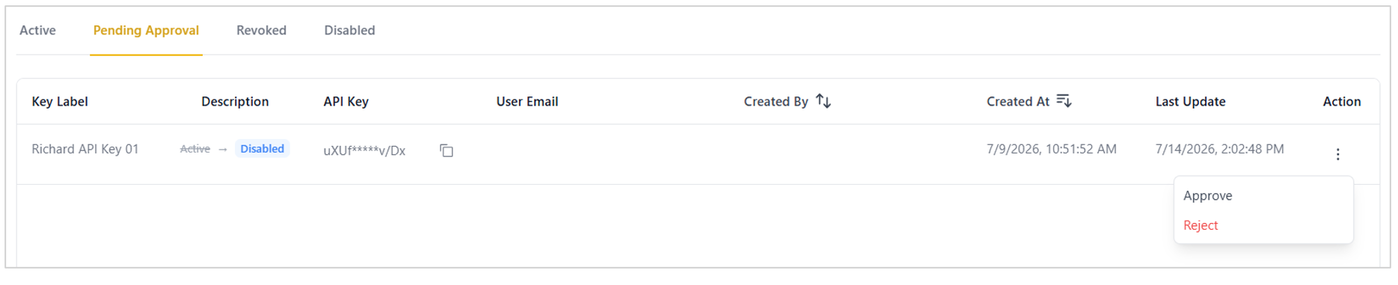
Navigate to the API Access ledger and click on the Pending Approval tab.
Locate the targeted key request, click the action button on the far right, and select Approve (or Reject if the action was unauthorized).
Step 3: Action Confirmation
Following the Root user's approval and secondary multi-factor authentication verification, the API Key's status will update automatically.
The key will be moved to its corresponding Disabled or Revoked tab segment based on the choice made in Step 1. The key is now offline and can no longer be utilized for system integrations.
