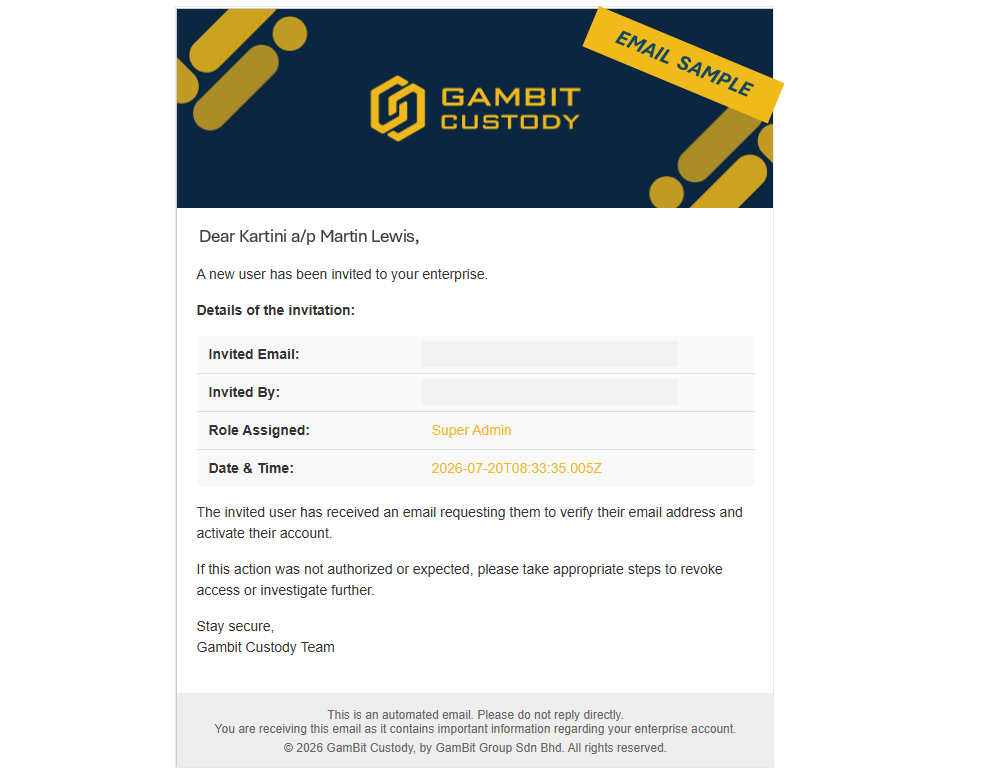

As a Root Admin or Super Admin, you can resend account activation invitations to team members who have not yet completed their registration. This is useful if the original invitation email was lost, accidentally deleted, or expired before the user could finish onboarding.
🔒Note: Only accounts with a status of Pending are eligible for invitation resend. Active or deactivated accounts cannot receive a resend.
Permission Matrix Breakdown
Before proceeding, please review the operational authority boundaries defined below:
Role | Can Resend Invitation? |
|---|---|
Root Admin | ✅ Yes |
Super Admin | ✅ Yes |
Standard User | ❌ No |
When Should You Resend an Invitation?
You may need to resend an invitation in the following situations:
The invited team member did not receive the initial email (advise them to check their spam/junk folder first).
The invitation link expired before registration was completed.
The original email was accidentally deleted.
A update to the recipient's corporate email address requires a fresh link.
How to Resend an Invitation
Step 1: Access the Invitation Management Roster
Log in to the platform and go to the left navigation sidebar.
Select Policy Center > Enterprise Policies > User Management.
Select the Invitation tab at the top of the page.
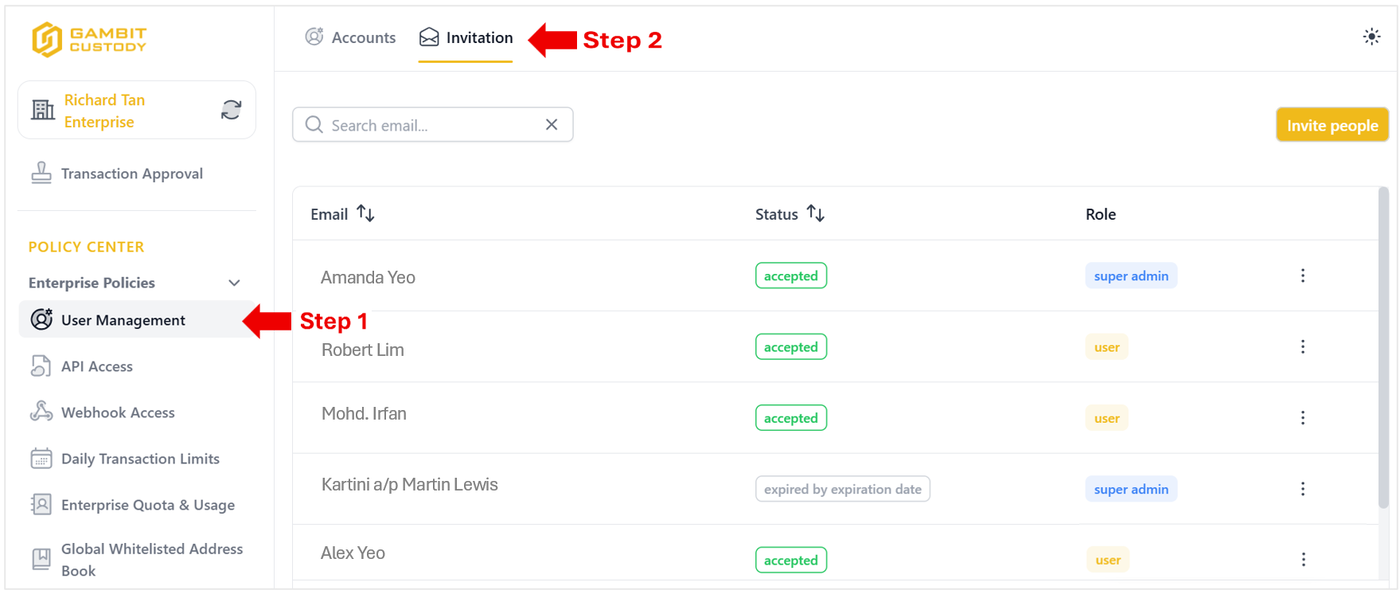
Step 2: Resend the Invitation Link
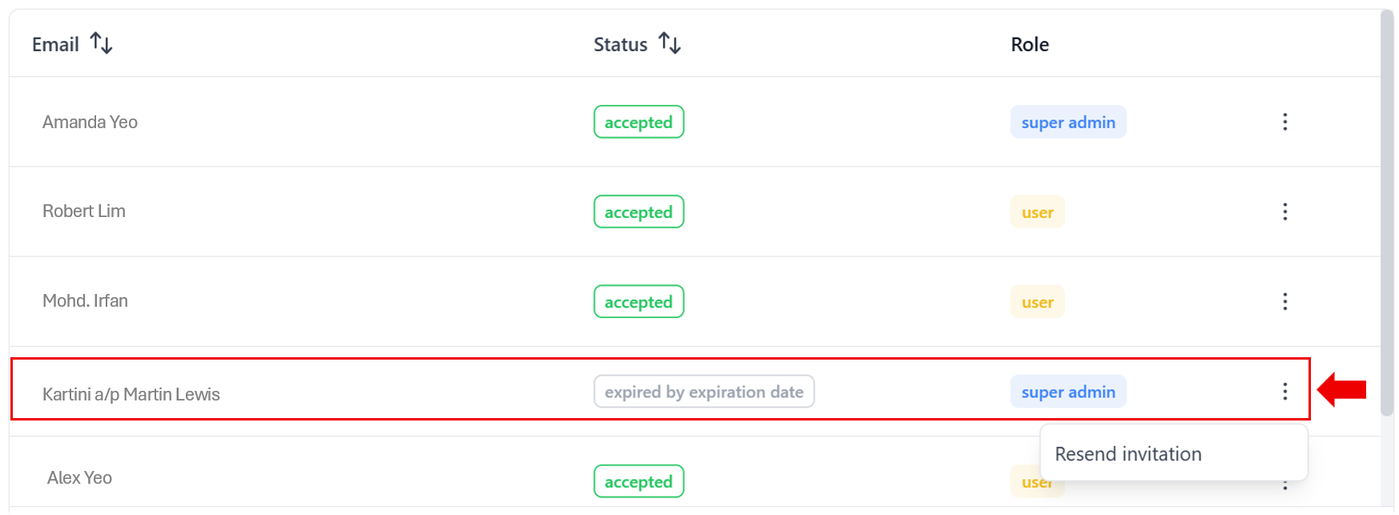
Locate the pending or expired team member in the table.
Click the three-dot action menu ( ⋮ ) on the right side of the corresponding row.
Select Resend Invitation from the menu.
A notification banner confirming "Invitation resent successfully!" will appear at the bottom right corner of the screen.
⏱️ Expiry Notice: Resent invitation links carry the standard expiration window. Advise the recipient to complete their registration promptly upon receiving the email.
Step 3: Guide the Invited User
After dispatching the invitation:
Ask the recipient to check their inbox (including spam/junk folders) for an email from Gambit Custody.
Have them click the Verify Email Address button inside the email to start onboarding.
The user can then complete their password creation, Multi-Factor Authentication (MFA) setup, and KYC submission as detailed in the Invite a Team Member guide.