
The Digital Assets Custody (DAC) portal allows Enterprises to establish custom Daily Transaction Limits as a core security measure, ensuring all daily outbound volumes remain strictly aligned with company risk policies. This article provides step-by-step instructions on how to configure and submit a new Daily Transaction Limit request.
🔒 Policy Note: To maintain stringent operational security, any changes to the enterprise transaction limit follow a dual-authorization workflow. A limit update requires an initial submission by an authorized administrator followed by mandatory final approval from the account's Root user.
Role | Access |
|---|---|
Root Admin | ✅ Approve changes |
Super Admin (all) | ✅ Initiate changes request (Root approval required) |
User (all) | ❌ No access |
Step 1: Navigate to the Daily Transaction Limits Module
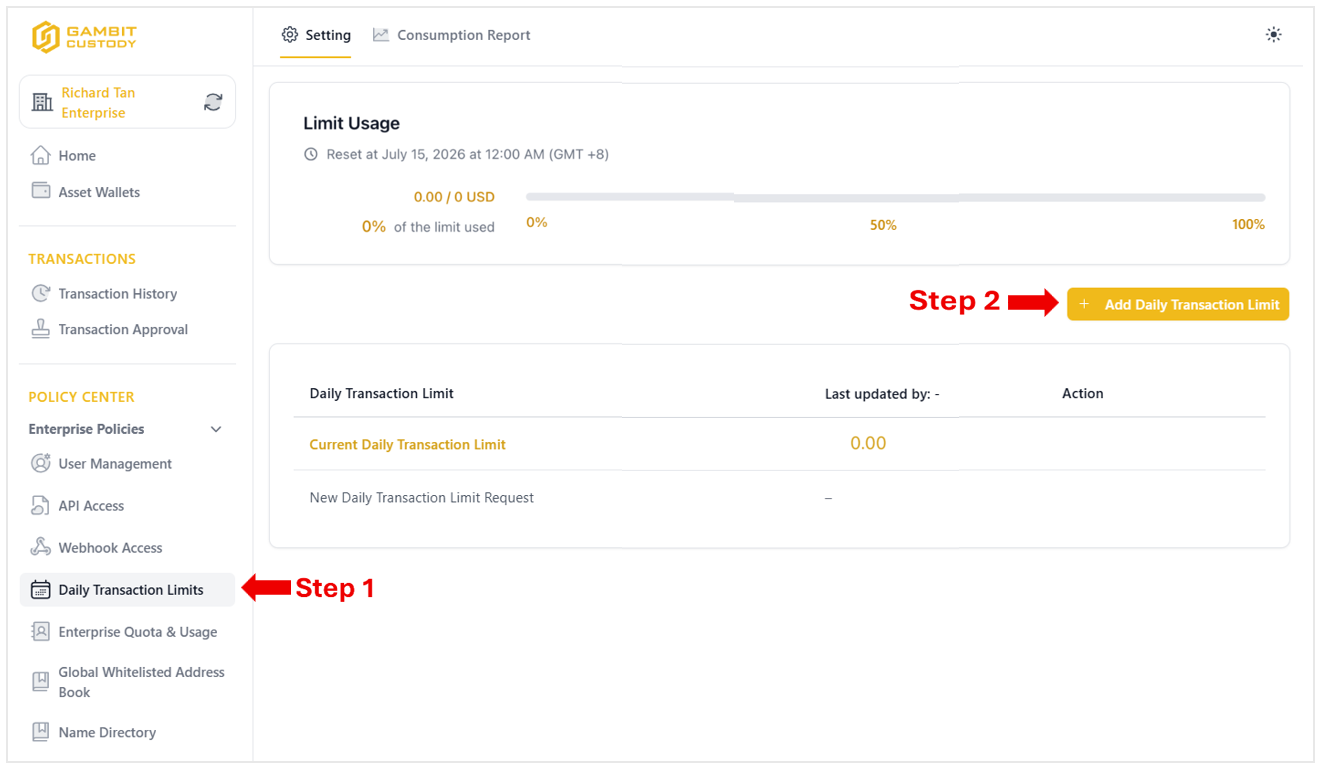
Locate the Policy Center section in the left sidebar menu.
Under the Enterprise Policies dropdown, select Daily Transaction Limits.
In the main configuration panel, click the yellow + Add Daily Transaction Limit button.
💡 Note: By default, the initial configuration for the daily transaction limit is set to 0.00. In this system, a value of 0.00 indicates that no daily transaction limit is currently enforced for the enterprise.
Step 2: Input the New Transaction Limit
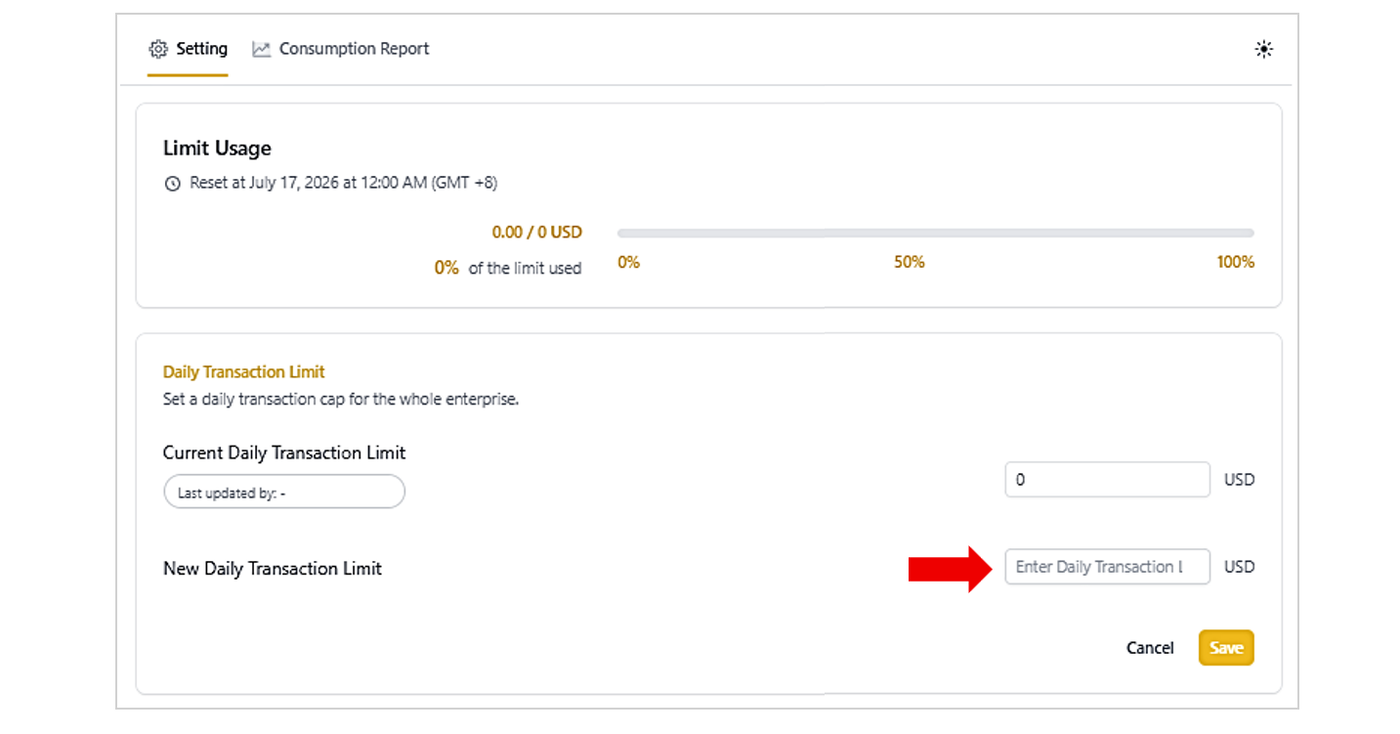
Once clicked, the configuration section below the usage graph will update.
Locate the New Daily Transaction Limit input field.
Enter your desired maximum daily amount in the designated USD text field.
Click the yellow Save button to proceed.
Step 3: MFA Verification & Submission
Upon saving, a Multi-Factor Authentication (MFA) module will prompt you for verification.
Complete the MFA verification step to officially submit the update.
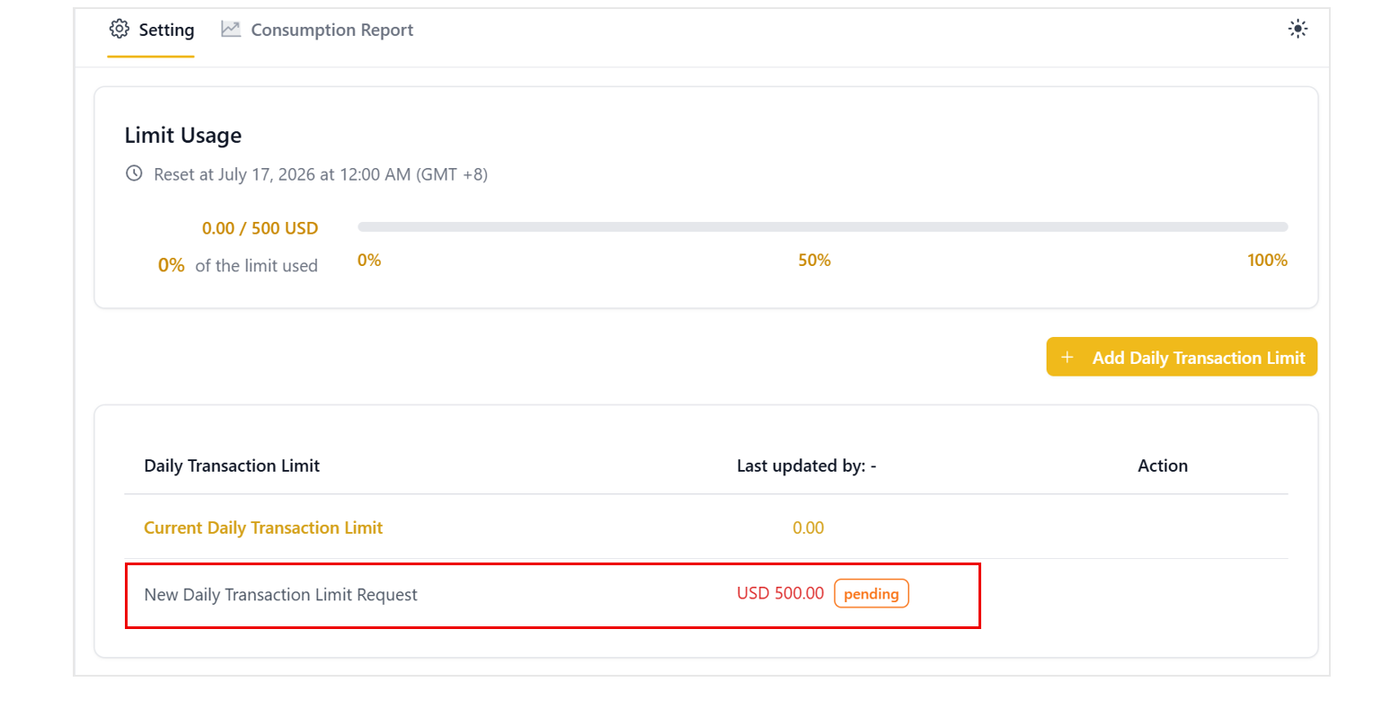
Once verified, the request status will display as Pending under the New Daily Transaction Limit Request line item.
Step 4: Review and Approval by the Root User
Before the new limit takes effect, the designated Root user must review and authorize the request.
The Root user must log in to their respective account.
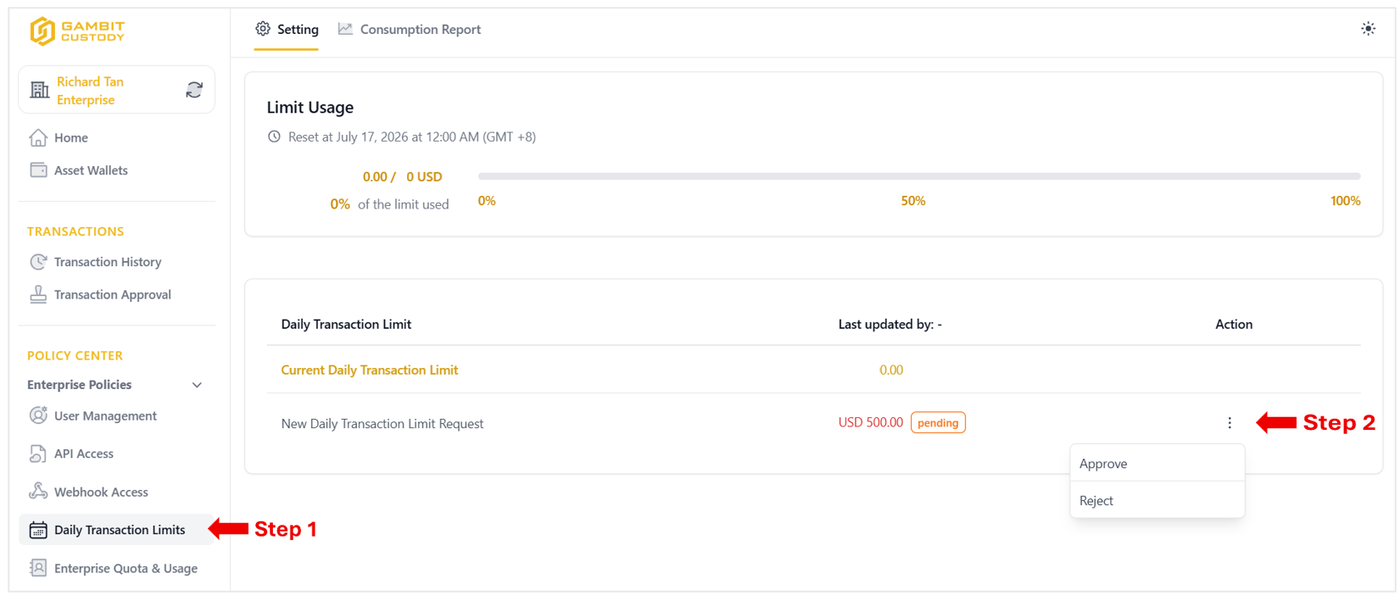
Navigate to the Daily Transaction Limits module under Enterprise Policies.
Locate the active pending request entry and click the action button (three vertical dots) on the far right.
Select Approve (or Reject if the change is unauthorized) and complete the required MFA confirmation step.
Step 5: Implementation and Verification
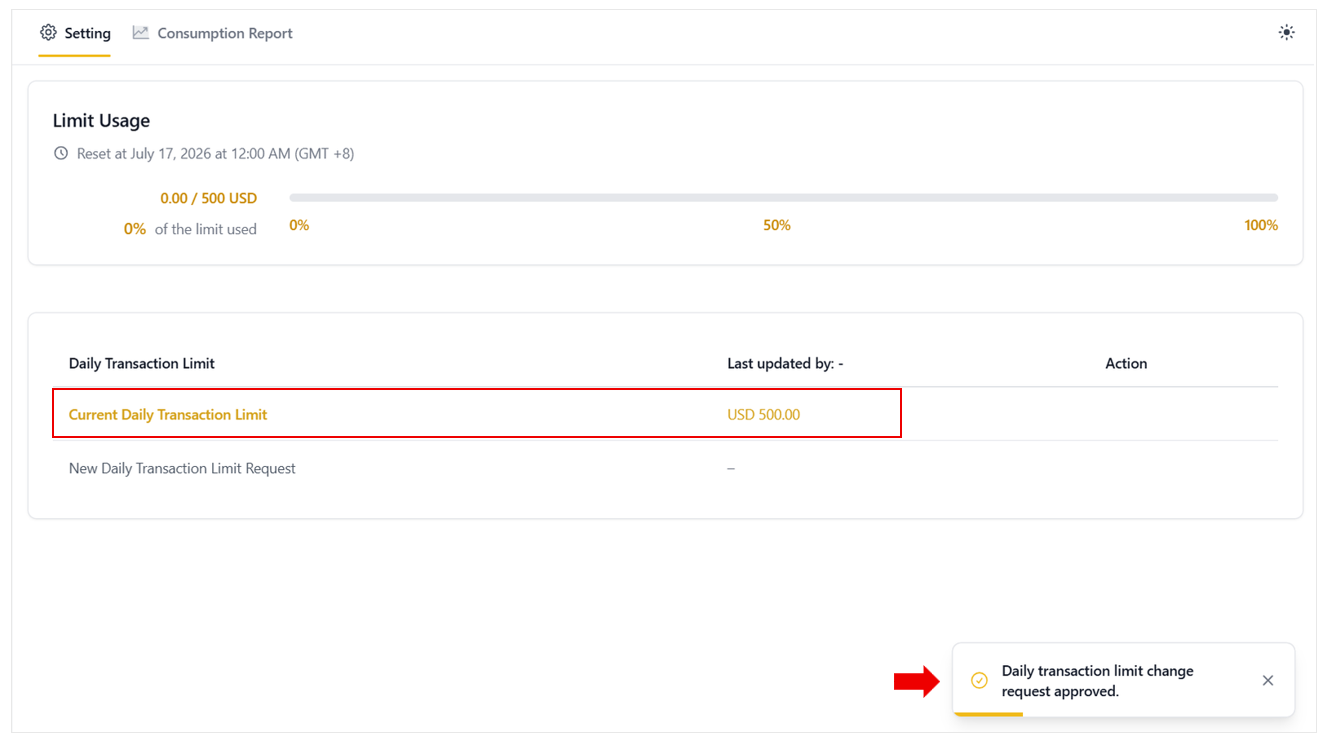
Upon successful approval by the Root user, a toast notification stating "Daily transaction limit change request approved" will appear in the bottom-right corner of the platform interface.
The newly authorized limit will immediately update and reflect within the Current Daily Transaction Limit row.