

This guide outlines the recovery procedure for users who are unable to log in to the Gambit DAC Enterprise Portal due to forgotten credentials. By following these steps, you can safely request a secure password reset link and establish new credentials to regain access to your platform dashboard.
Step 1: Access the Recovery Tool
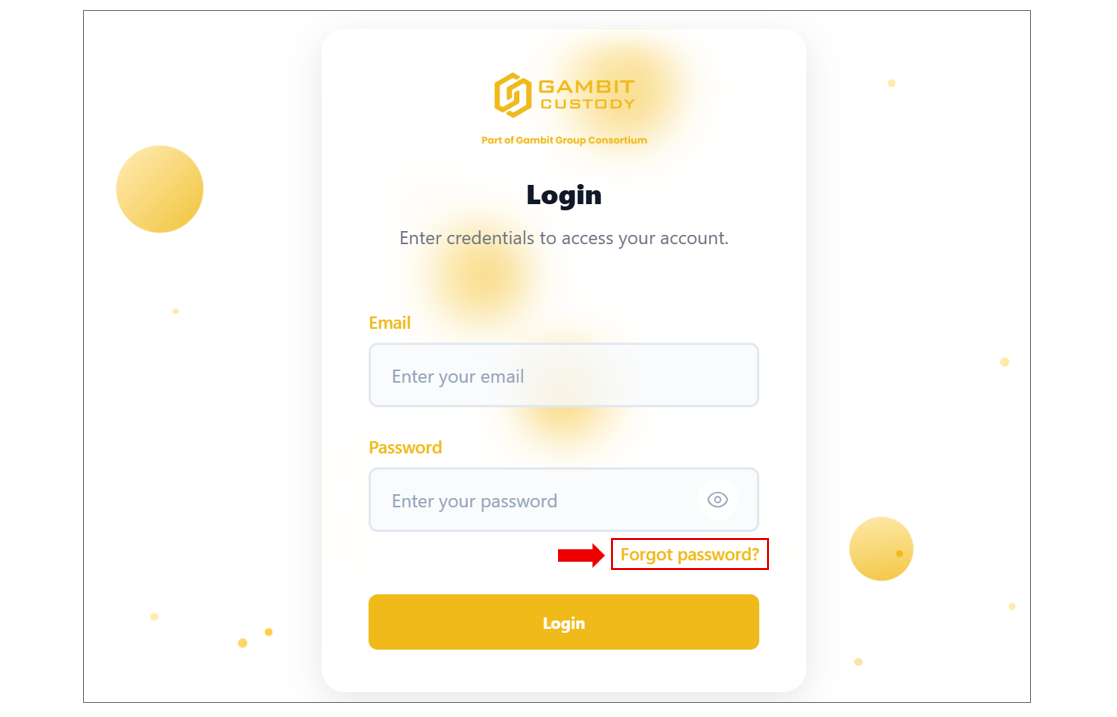
Navigate to the primary portal login page.
Locate the password input box.
Click the amber Forgot password? link situated directly above the main Login button.
Step 2: Request a Password Reset Link
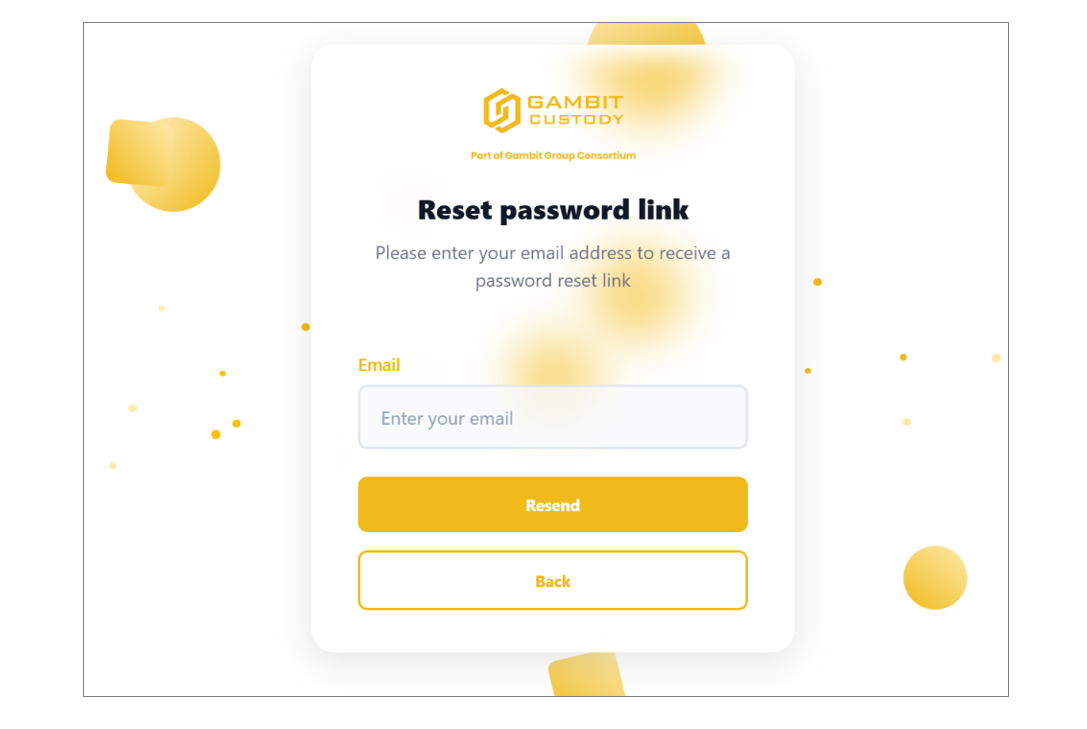
The system will redirect you to the Reset password link portal interface window.
Input your registered corporate email address into the designated email text field block.
Click the yellow Resend button to dispatch an automated recovery token to your inbox.
💡 Note: If you need to abort this operation, click the Back button to safely return to the standard login screen.
Step 3: Retrieve the Security Link
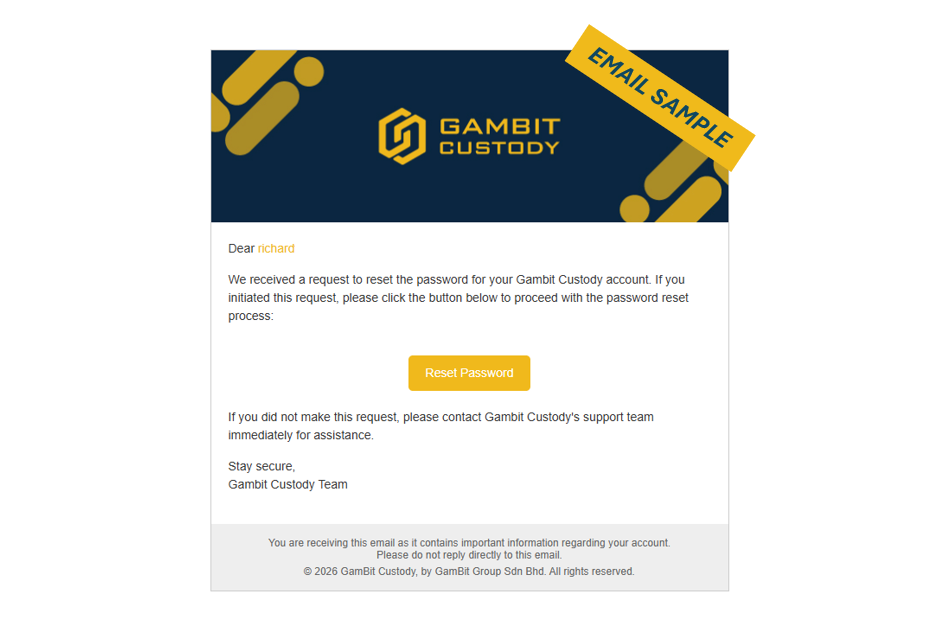
Open your corporate email inbox associated with your portal profile.
Look for an automated message from the platform with the subject line regarding account recovery.
Review the message details to verify the request's validity, then click the amber Reset Password button inside the message body.
Step 4: Configure Your New Password
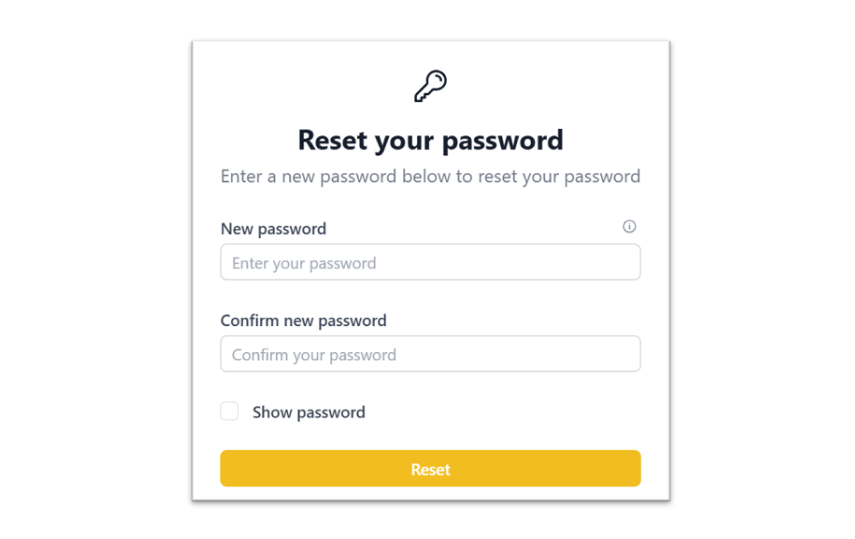
The email link will securely redirect your browser to the Reset your password configuration widget page.
Input your new secure passphrase into the New password input box.
Re-enter the exact same passphrase into the Confirm new password field to ensure input alignment.
💡 Note: The new password must contain a mix of uppercase, lowercase, numerical, and special characters to satisfy minimum security requirements. Tick the Show password checkbox if you need to visually verify your spelling entries.
Step 5: Confirmation and Re-login
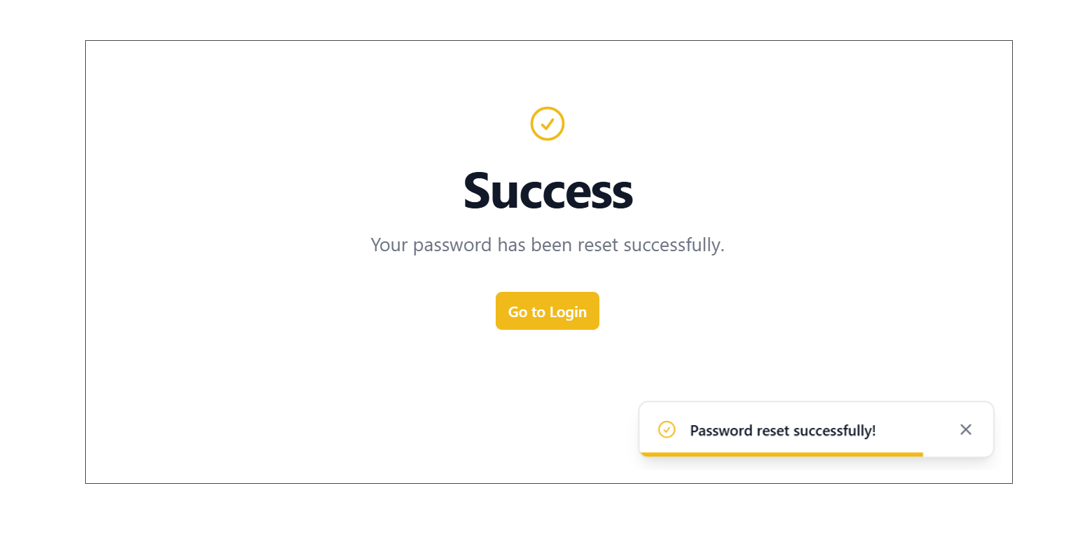
Upon a successful database update, the page will refresh to display a verified Success landing screen module.
A yellow alert banner confirming "Password reset successfully!" will simultaneously populate in the bottom right-hand corner of the window.
Click the yellow Go to Login button to return to the standard portal dashboard gateway and sign in using your newly configured credentials.
🔒 Password Best Practices
Practice | Description |
|---|---|
Use Strong Passwords | At least 8–12 characters with symbols, numbers, and cases |
Don’t Reuse Passwords | Avoid using passwords from other systems |
Update Regularly | Recommended every 90 days |
Keep it Confidential | Do not share your password with anyone |