

To maintain robust account security and corporate compliance, Gambit Custody strongly encourages users to update their passwords regularly. This guide provides a clear, step-by-step walk-through to safely modify your portal access credentials from within your account settings.
Step 1: Open Your Profile Settings
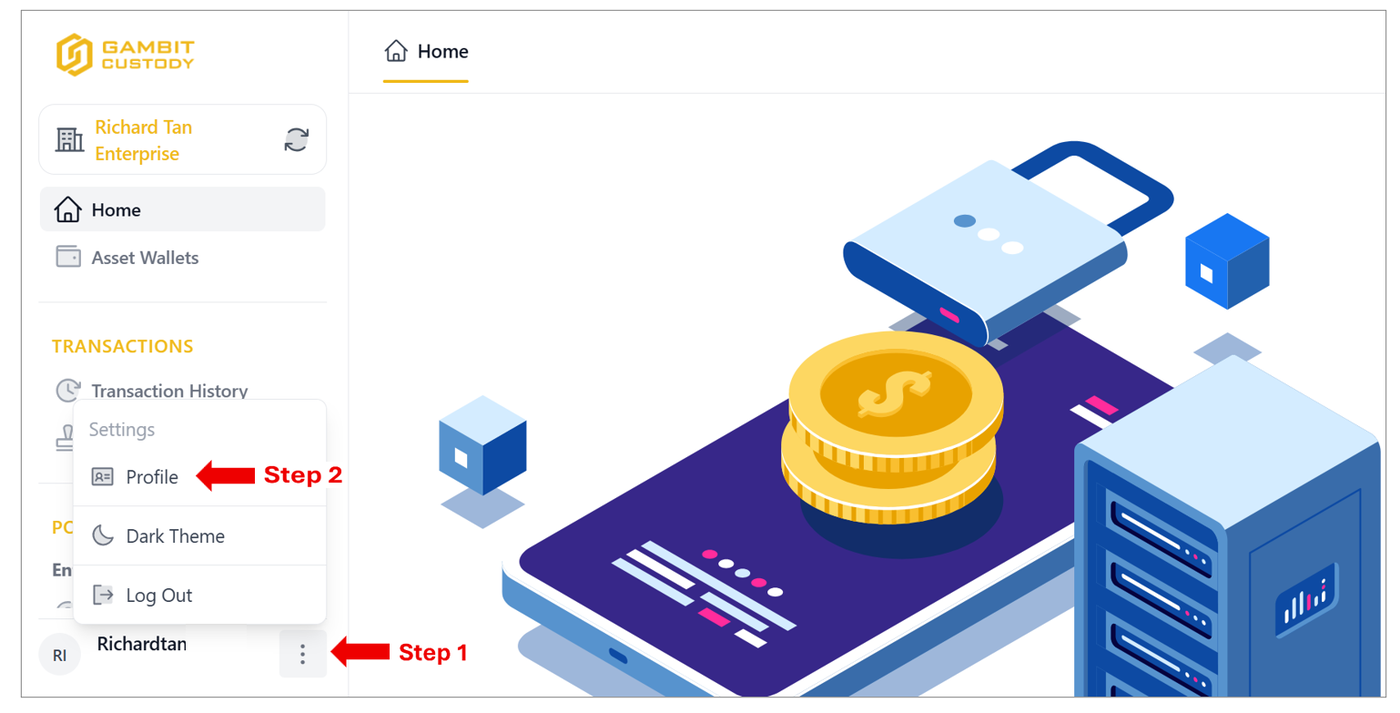
Navigate to the bottom-left corner of the Gambit DAC Enterprise Portal dashboard.
Locate your username display and click on the three-dot action menu icon.
From the pop-up options menu that appears, select Profile.
Step 2: Trigger the Password Update Interface
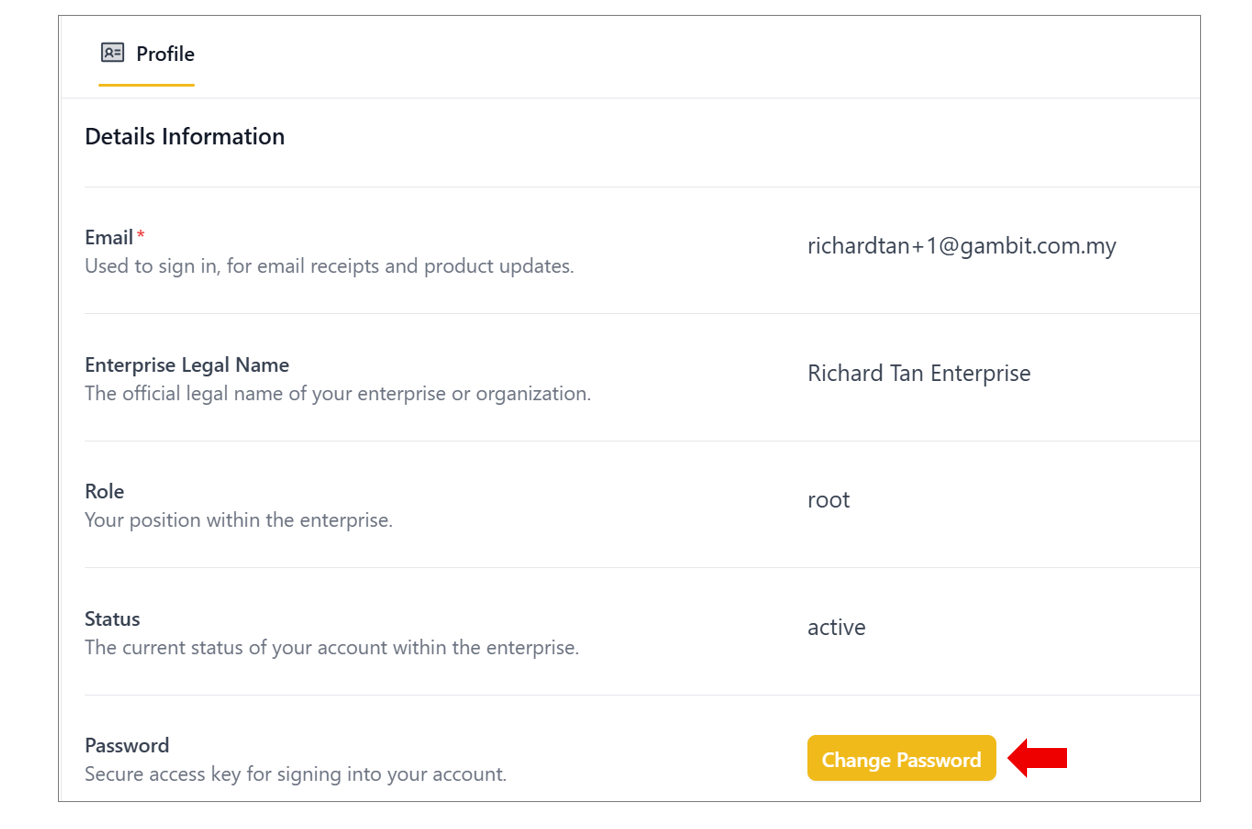
You will be redirected to your personal account overview pane labeled Details Information.
Locate the Password field row at the bottom of the ledger list.
Click the amber Change Password button situated on the right-hand side.
Step 3: Enter Your Password Credentials (System Modal)
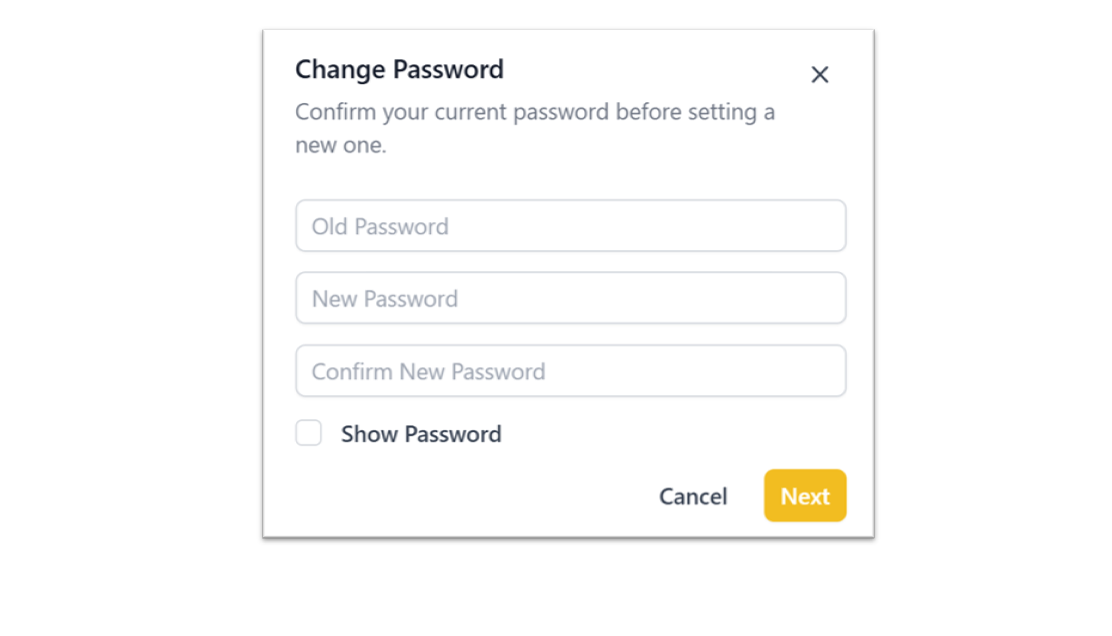
A configuration pop-up window will manifest requesting your credential details.
Carefully input your existing password into the Old Password field.
Type your new password into the New Password field.
Re-type the exact new password into the Confirm New Password verification block to ensure absolute input alignment.
Click Next to proceed to the security validation layer.
💡Note: The new password must contain a mix of uppercase, lowercase, numerical, and special characters to satisfy minimum security requirements.
Step 4: Clear the Two-Factor Authorisation Gate
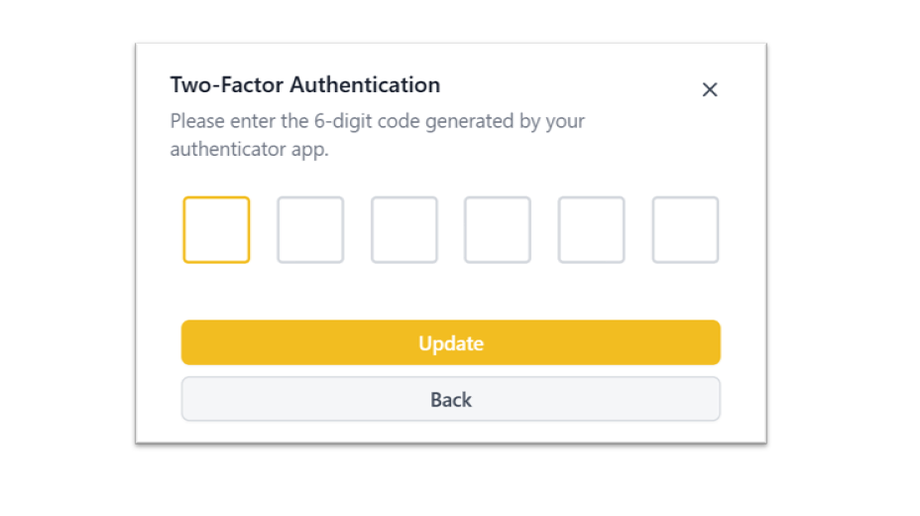
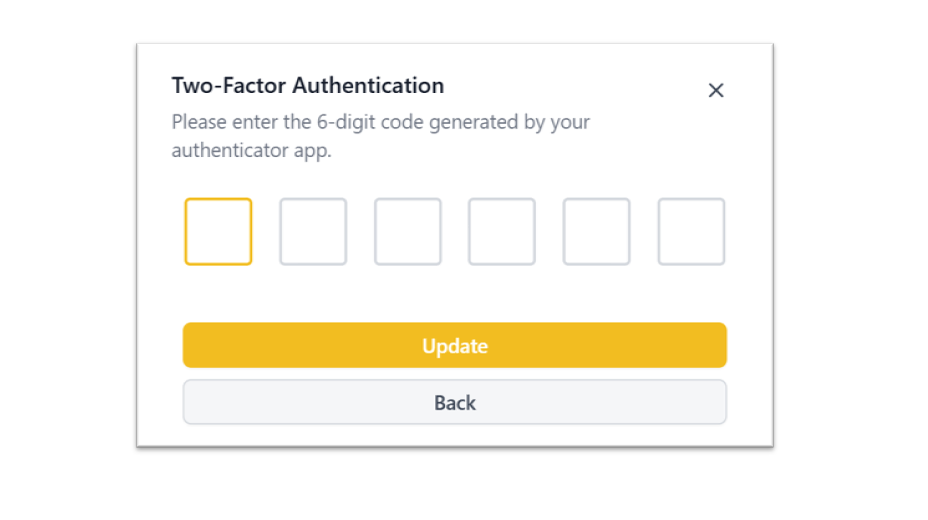
To verify your individual deployment identity and protect against unauthorised account takeover attempts, the portal enforces a mandatory verification check:
Open your registered Authenticator application.
Retrieve the active, time-sensitive 6-digit code generated for your portal profile.
Input the digits into the corresponding text box field blocks inside the Two-Factor Authentication window overlay.
Click the yellow Update button to transmit your changes to the live database server.
Step 5: System Confirmation & Account Re-login
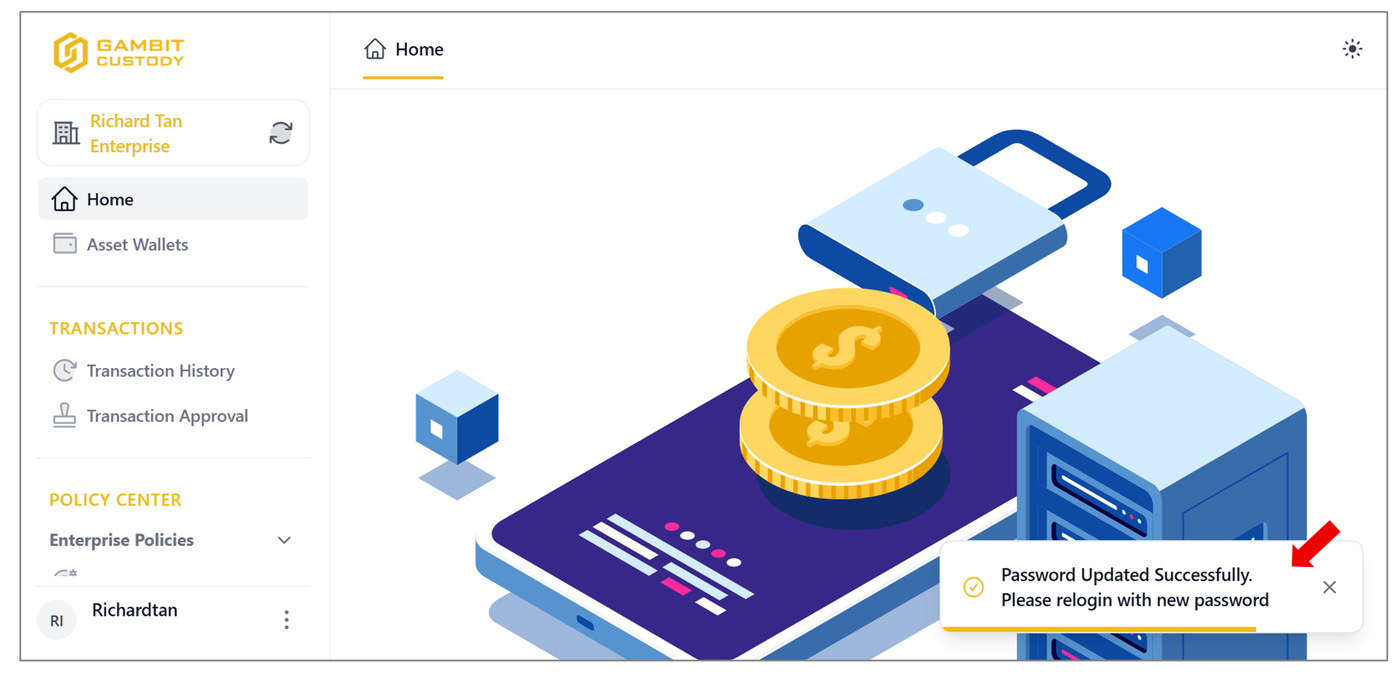
Upon successful verification, the modal interface wrapper will automatically collapse, returning you to the primary homepage control hub.
A green confirmation status banner will populate momentarily in the bottom right-hand corner of your screen stating: "Password Updated Successfully. Please relogin with new password."
For your safety, active login tokens will expire shortly. Please log out or refresh your browser tab, then sign back into the system using your updated password to re-establish your authorised session.
🔒 Password Best Practices
Practice | Description |
|---|---|
Use Strong Passwords | At least 8–12 characters with symbols, numbers, and cases |
Don’t Reuse Passwords | Avoid using passwords from other systems |
Update Regularly | Recommended every 90 days |
Keep it Confidential | Do not share your password with anyone |