

Wallet Access Control lets you define exactly who can interact with each asset wallet in your enterprise. For every wallet, you assign team members to one of three roles — Initiator, Approver, or Viewer — controlling who can move funds, who approves transactions, and who can only view activity.
🔒 Policy Note: To maintain top-tier institutional security, creating or modifying a whitelisted address group follows a dual-authorization workflow. A new setup requires an initial configuration submission by an authorized administrator followed by mandatory final approval from the enterprise's Root user.
Role | Access |
|---|---|
Root Admin | ✅ View & Approve changes |
Super Admin (all) | ✅ View, Add & Edit (Root approval required) |
User (all) | ❌ No access |
How to Open Wallet Access Control
Log in to the Enterprise Portal.
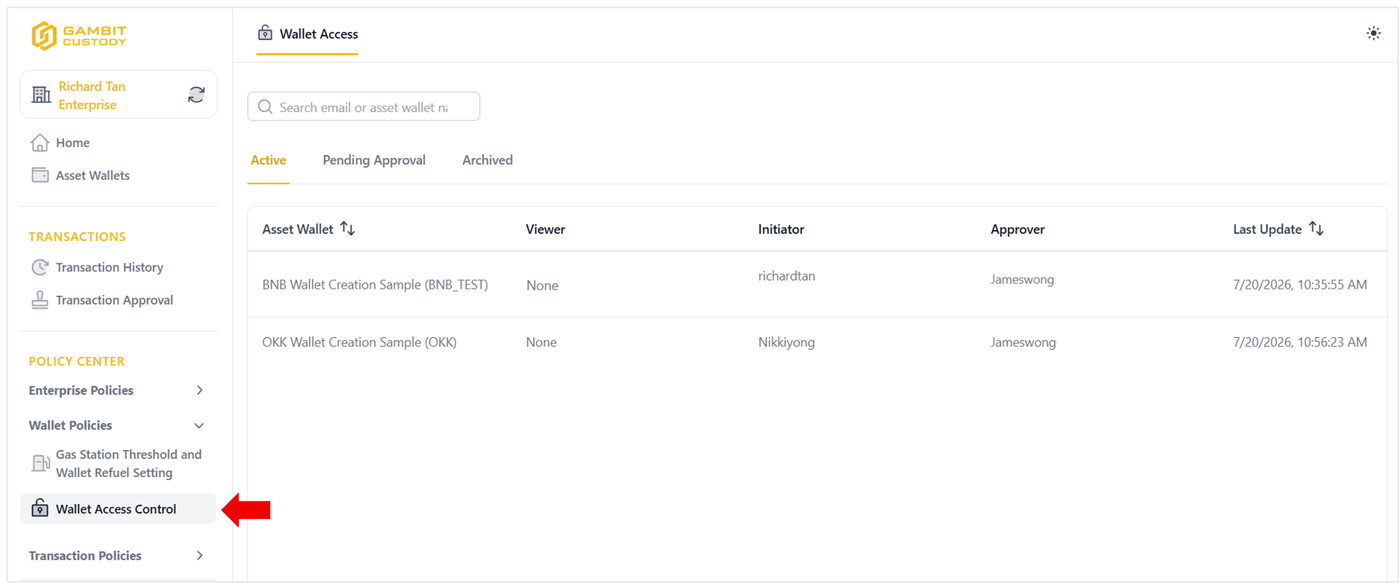
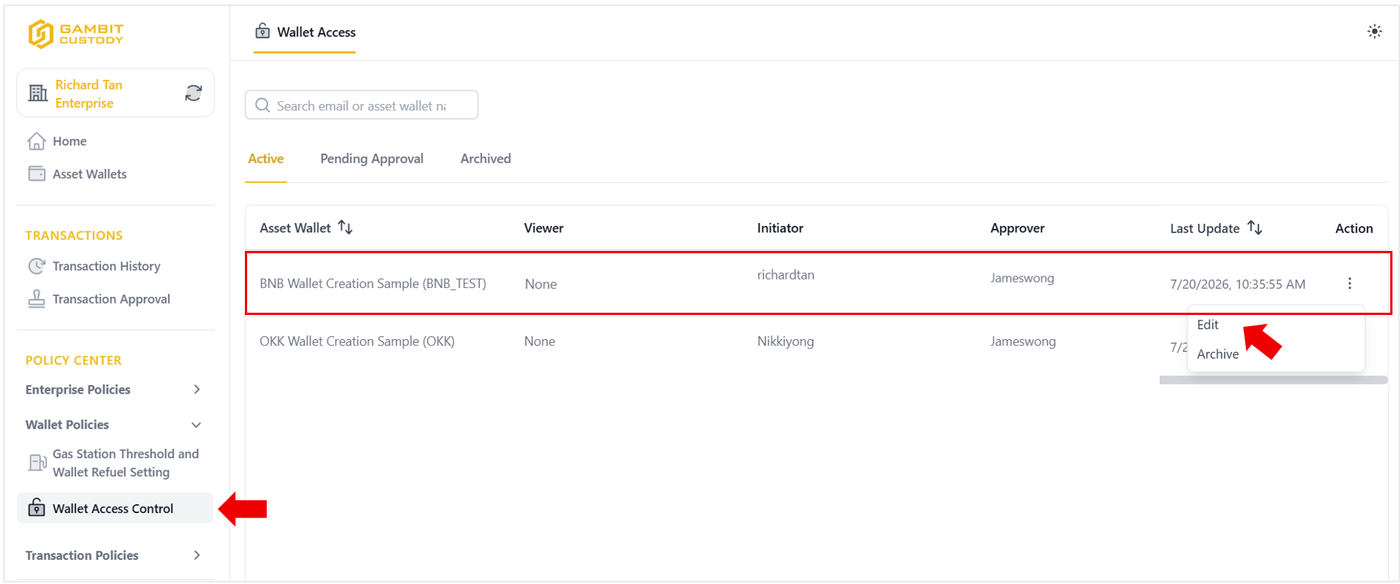
From the left-hand sidebar, go to POLICY CENTER → Wallet Policies → Wallet Access Control.
The Wallet Access page will load, showing all existing access configurations.
Understanding the Wallet Access Table
Column | What It Means |
|---|---|
Asset Wallet | The wallet this access rule applies to |
Viewer | Team members assigned as Viewers for this wallet |
Initiator | Team members assigned as Initiators for this wallet |
Approver | Team members assigned as Approvers for this wallet |
Last Update | Date and time the configuration was last modified |
Action | Click ⋮ to see available actions for that record |
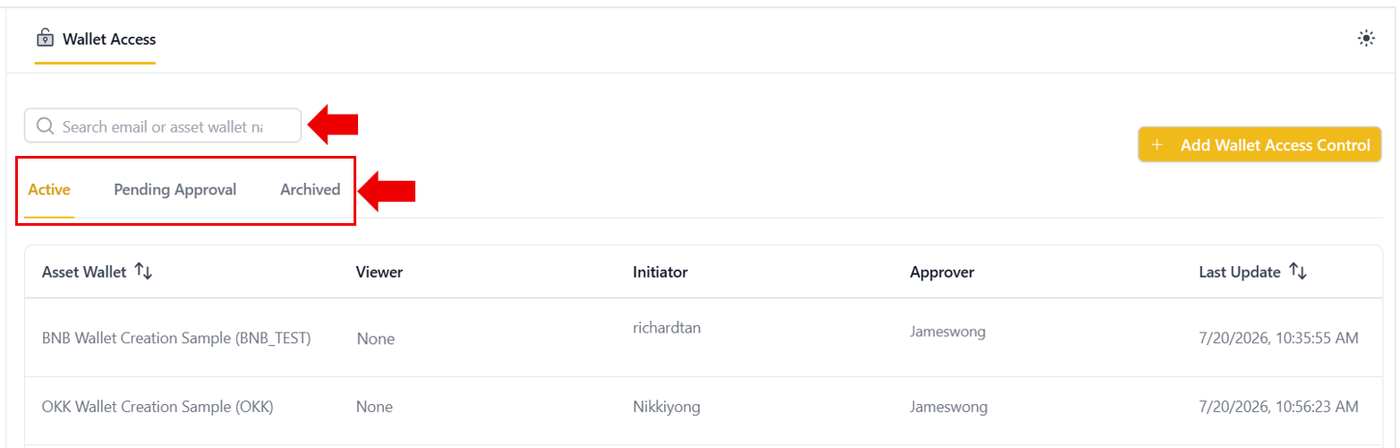
You can switch between three tabs:
Active — configurations currently in effect
Pending Approval — changes submitted but awaiting Root Admin approval
Archived — wallet-specific access rules that are no longer active
Use the search bar to find a specific user by email or look up a specific asset wallet.
About "Any Asset Wallet"
The Any Asset Wallet entry is a default system record that is pre-created for every enterprise. It acts as a global rule that covers all wallets in your enterprise.
It cannot be archived or deleted — only edited
Super Admins can edit this record to assign Initiators, Approvers, and Viewers that apply across all wallets
It does not appear as an option when creating a new wallet-specific access control
Adding a New Wallet Access Control
Use this when you need access rules for a specific wallet, on top of the default Any Asset Wallet rule.
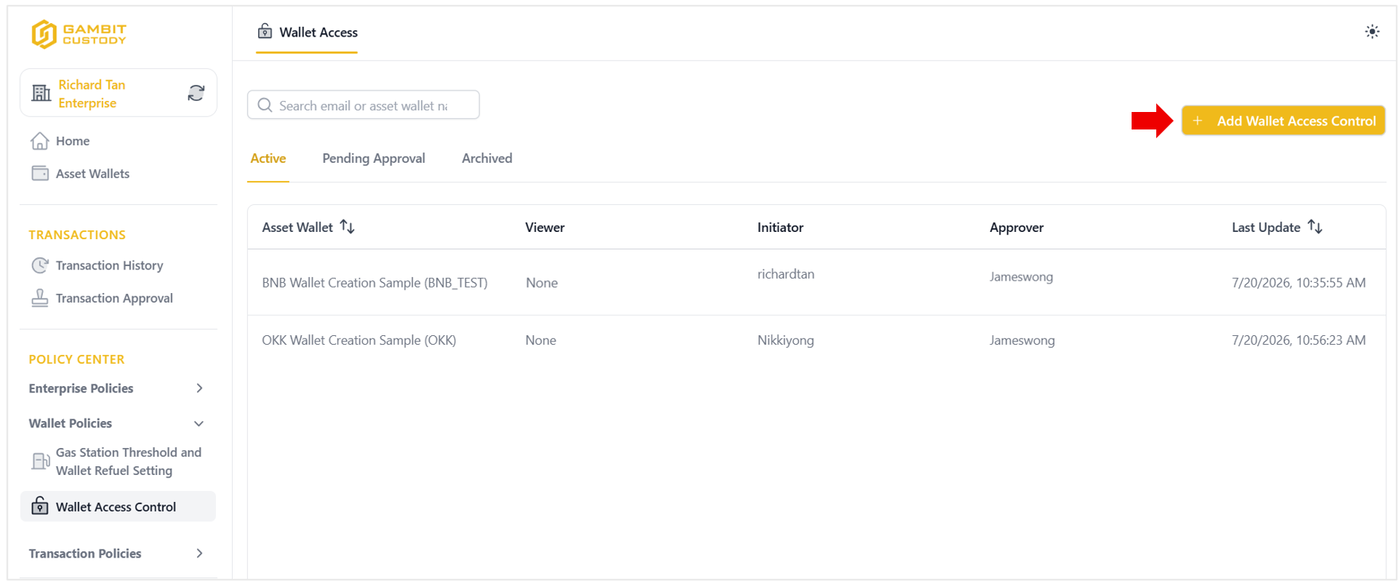
Click the yellow + Add Wallet Access Control button on the top right.
The Create Wallet Access Control form will appear.
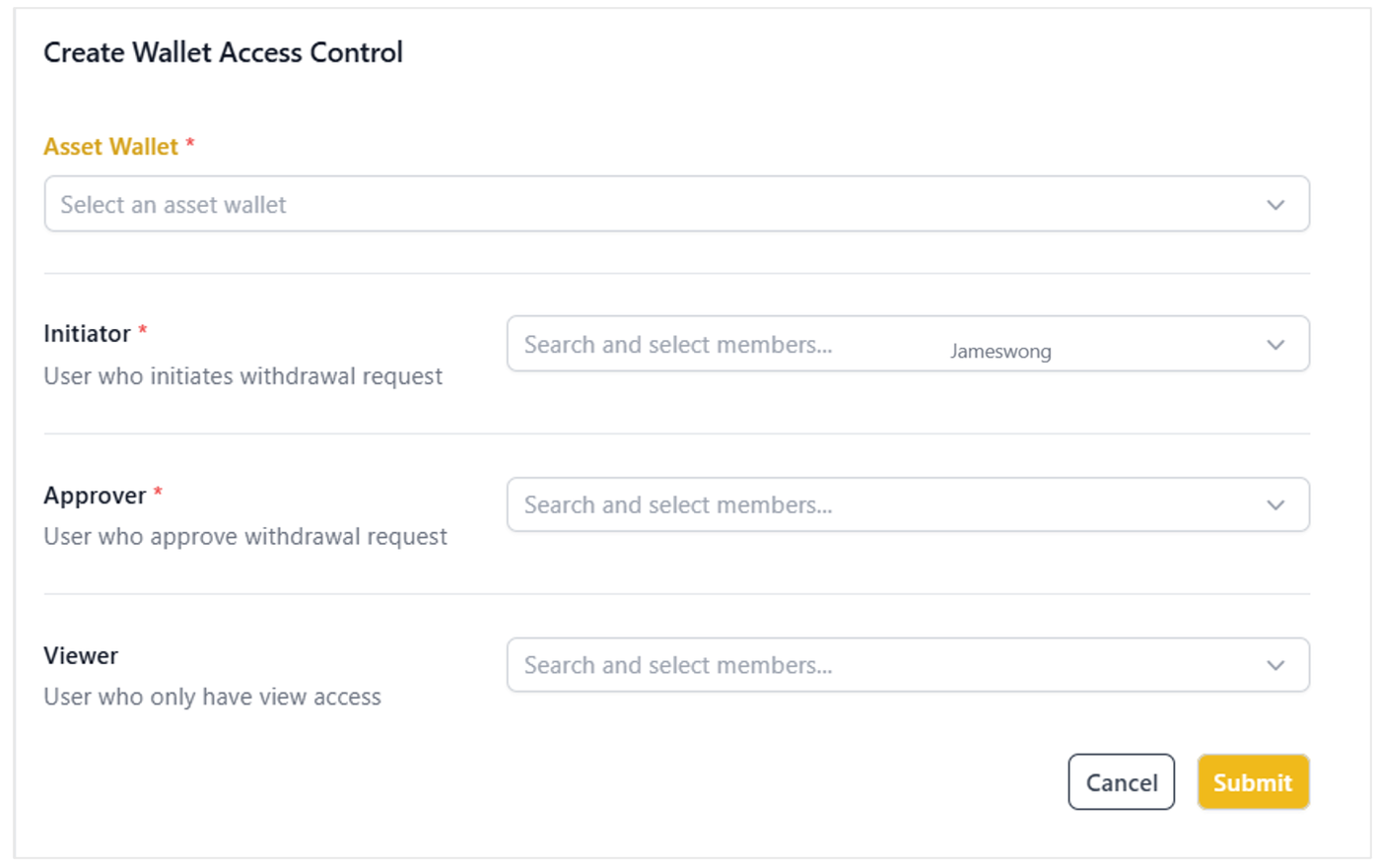
Fill in the required fields (marked with a red asterisk *):
Field | Mandatory? | What to Do |
|---|---|---|
Asset Wallet | ✅ Yes | Select a specific wallet from the dropdown (e.g. BNB USDT) |
Initiator | ✅ Yes | Search and select the team member(s) who will initiate withdrawal requests |
Approver | ✅ Yes | Search and select the team member(s) who will approve withdrawal requests |
Viewer | ❌ Optional | Search and select team member(s) who need view-only access |
Click Submit to send the configuration for Root Admin approval.
Click Cancel to discard without saving.
Editing an Access Control Record
Both the default Any Asset Wallet record and wallet-specific records can be edited.
On the Wallet Access page, locate the record you want to update.
Click the ⋮ Action menu on the right of the row.
Select Edit — the Edit Wallet Access Control panel will appear.
The Asset Wallet field is fixed and cannot be changed.
Update the Initiator, Approver, or Viewer assignments:
To add a member: use the Search and select members... dropdown
To remove a member: click the 🗑️ trash icon next to their email
Click Submit to send the changes for Root Admin approval, or Cancel to discard.
Archiving a Wallet-Specific Access Control
Wallet-specific records (those added via + Add Wallet Access Control) can be archived when they are no longer needed.
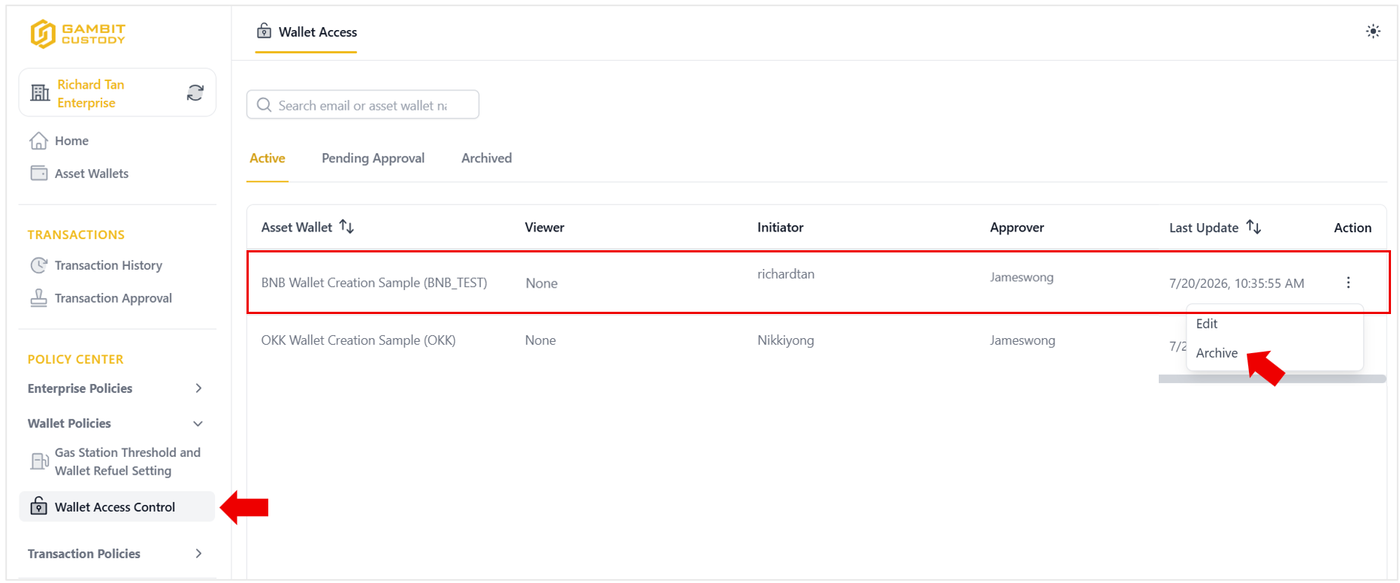
Locate the record on the Wallet Access page.
Click the ⋮ Action menu on the right of the row.
Select Archive.
The record will move to the Archived tab after Root Admin approval.
⚠️ Note: The default Any Asset Wallet record cannot be archived. Only wallet-specific records added by Super Admins have the Archive option.
After Submitting
Once submitted, your changes will appear under the Pending Approval tab. After Root Admin approval, the updated access control becomes active immediately.